
(GCA) Ganged Controlled Array – Anthony P. Kuzub (Anthony@Kuzub.com)
DEMO: https://like.audio/GCA/
## Overview
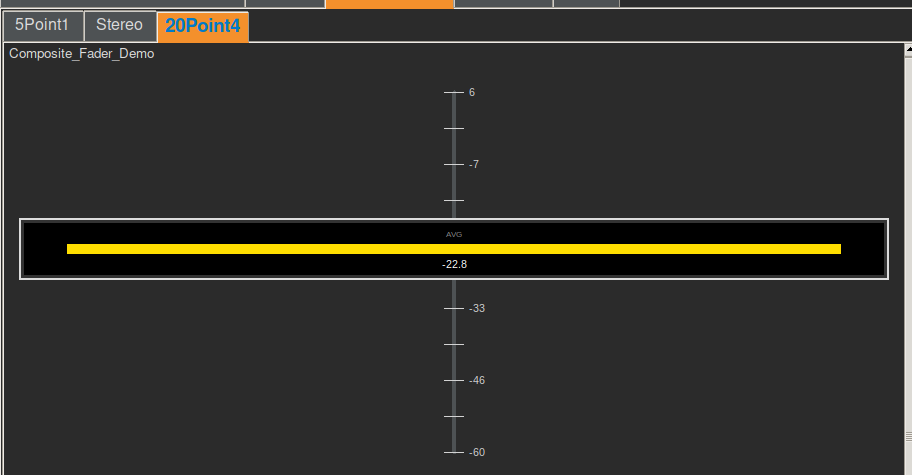
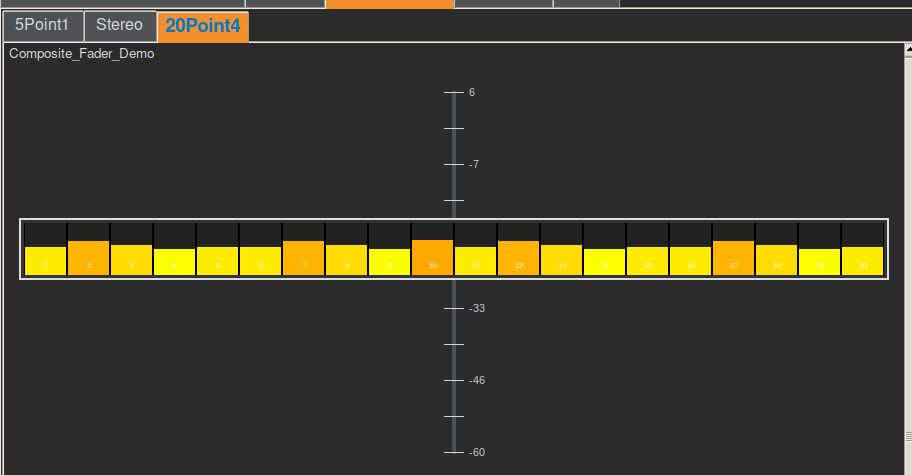
The **Ganged Controlled Array (GCA)**, also known as the **Composite Fader**, is a high-density user interface widget designed to manage multiple related parameters (channels) through a single “Master” fader cap. It solves the problem of controlling groups of values (e.g., a 5.1 surround mix, a drum bus, or an RGB color mix) where maintaining relative offsets is critical, but screen real estate is limited.
# Composite Smart-Fader Design & Style Guide
## Core Concepts
### 1. Composite Control
* **The Cap:** A single, large fader cap spans across all underlying channel tracks.
* **Master Value:** The position of the cap represents the *average* value of all child channels.
* **Gang Behavior:** Moving the cap adjusts all child channels simultaneously, preserving their relative offsets (e.g., if Channel 1 is +10dB relative to Channel 2, this difference is maintained as the master volume creates a fade-out).
### 2. Dual-View Modes
Users can toggle between two visualization modes by double-clicking (or double-tapping) the fader cap:
* **Macro Mode (Default):**
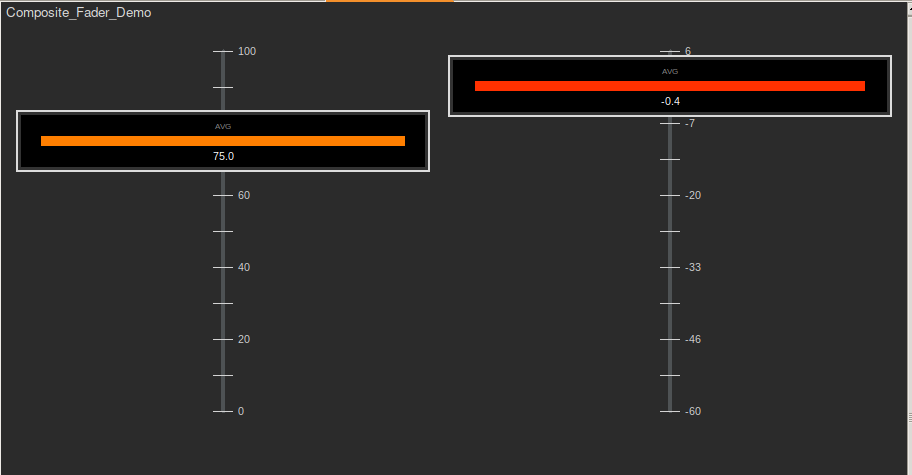
* Displays a single bar representing the average value.
* Useful for quick, high-level adjustments (e.g., “Turn down the drums”).
* Shows the numeric average value.
* **Micro Mode:**
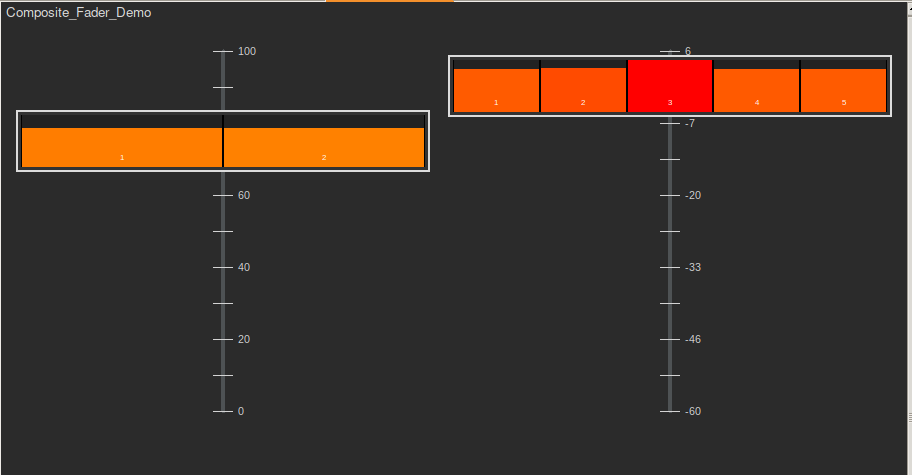
* The cap’s “screen” splits into individual mini-meters for each channel.
* Provides a detailed view of the internal balance of the group.
* Allows **individual adjustments**: Users can click/drag specific mini-bars *inside* the cap to tweak a single channel’s offset without moving the whole group.
### 3. Visual Feedback
* **Tracks:** Each channel has its own vertical track line.
* **Markers:** Small colored markers on the tracks indicate the actual value of each channel relative to the master cap position.
* **Color Coding:** Values are color-coded (Green → Yellow → Red) to indicate intensity or signal level.
* **Master Highlight:** An orange highlight line connects the bottom of the track to the master cap, visualizing the overall group level.
## Use Cases
* **Audio Mixing:** Controlling a stereo pair, a 5.1/7.1 surround bed, or a 20-channel microphone array for an orchestra.
* **Lighting Control:** Managing RGB (Red, Green, Blue) intensity for a fixture using a single fader while allowing individual color tweaking.
* **Data Visualization:** adjusting threshold parameters for a sensor array.
## Implementations
### HTML5 Demo (`index.htm`)
A standalone web-based demonstration using HTML5 Canvas.
* **Features:** Touch support, responsive layout, RGB mixer example.
* **Theme:** Dark mode with Orange (`#f4902c`) accents.
### Python Prototype (`Composite_fader_multichannel.py`)
A `tkinter`-based widget for desktop applications.
* **Integration:** Designed to work with an MQTT-based state mirror engine for real-time hardware control.
* **Configuration:** Data-driven via config dictionaries (JSON/YAML compatible).
### Key Concepts
– **Macro View (Closed):** The fader cap displays a single aggregated value (Average). Moving the fader moves all children proportionally.
– **Micro View (Open):** The fader cap “expands” (visually toggles) to reveal individual vertical strips for each child channel. Users can adjust these individual levels directly on the cap without moving the master fader position, updating their relative offsets.
– **Proportional Logic:** The system maintains offsets between the master and children. Moving the master applies the delta to all children. Moving a child updates its specific offset.
—
## 2. Configuration Parameters (JSON)
The widget is configured via a JSON object in your GUI layout file. Use the type `_CompositeFader`.
### Core Settings
| Parameter | Type | Default | Description |
| :— | :— | :— | :— |
| `type` | String | `_CompositeFader` | **Required.** Identifies the widget type. |
| `label_active` | String | “Composite” | The text label displayed above the fader. |
| `value_min` | Float | `0.0` | The minimum value for the fader and all channels. |
| `value_max` | Float | `100.0` | The maximum value for the fader and all channels. |
| `num_channels` | Integer | `4` | The number of child channels to manage. |
### Visual Layout
| Parameter | Type | Default | Description |
| :— | :— | :— | :— |
| `layout` | Object | `{}` | Container for sizing options. |
| `layout.width` | Integer | `100` | Width of the entire widget in pixels. |
| `layout.height` | Integer | `400` | Height of the entire widget in pixels. |
| `show_ticks` | Boolean | `true` | Whether to draw tick marks along the track. |
| `tick_interval` | Float | *(Auto)* | The value interval between ticks. Defaults to range / 10. |
| `tick_color` | String | `”light grey”` | Color of the tick marks. |
| `tick_thickness`| Integer | `1` | Thickness of tick lines in pixels. |
### Channel Definition
| Parameter | Type | Default | Description |
| :— | :— | :— | :— |
| `channels` | Array | `[]` | List of objects defining properties for each channel. |
| `channels[i].default` | Float | `min_val` | The initial starting value for this channel. |
| `channels[i].label` | String | “” | Label for the channel (currently unused in Micro view but good for reference). |
—
## 3. Style Guide & Visuals
### Colors
The widget automatically adapts to the global application theme (`THEMES`).
– **Background:** `theme[“bg”]` (e.g., `#2b2b2b`)
– **Track:** `theme[“secondary”]` (e.g., `#444444`)
– **Handle/Bezel:** `theme[“fg”]` (e.g., `#dcdcdc`)
### The “Smart Cap”
The fader cap is rendered as a “device” with a bezel and a screen area.
– **Macro Mode:** Displays a single bar representing the average value of all channels. Color gradients from Green (<50%) to Red (>50%).
– **Micro Mode:** Displays `num_channels` vertical strips. Each strip shows its own level bar.
### Customization Tips
– **Width:** Use a wider width (e.g., `120`, `150`, or more) to allow sufficient space for the Micro view strips. A width of `40` is too narrow for 8 channels.
– **Height:** Standard fader height is `300` to `400` pixels.
—
## 4. How to Use (Interaction Guide)
### Mouse / Touch Actions
| Action | Target | Result |
| :— | :— | :— |
| **Left Drag** | Track / Bezel | **Move Master:** Moves the physical fader position. All child channels move with it, maintaining their relative offsets. |
| **Right Click** | Anywhere | **Toggle View:** Switches the Smart Cap between **Macro** (Average) and **Micro** (Individual Channels) modes. |
| **Double Click** | Anywhere | **Toggle View:** Alternative gesture to switch modes. |
| **Left Drag** | Strip (Micro Mode) | **Adjust Child:** Dragging vertically on a specific strip inside the cap adjusts ONLY that channel. The Master fader remains stationary, but the internal offset for that channel is updated. |
—
## 5. Example Configurations
### Stereo Master (2 Channels)
“`json
“composite_stereo”: {
“type”: “_CompositeFader”,
“label_active”: “Stereo Mix”,
“value_min”: 0.0,
“value_max”: 100.0,
“num_channels”: 2,
“layout”: { “width”: 120, “height”: 400 },
“channels”: [
{ “default”: 75.0, “label”: “Left” },
{ “default”: 75.0, “label”: “Right” }
]
}
“`
### 5.1 Surround Group (6 Channels)
“`json
“composite_surround”: {
“type”: “_CompositeFader”,
“label_active”: “5.1 Group”,
“value_min”: -60.0,
“value_max”: 10.0,
“num_channels”: 6,
“layout”: { “width”: 160, “height”: 400 },
“tick_interval”: 10,
“channels”: [
{ “default”: -5.0, “label”: “L” },
{ “default”: -5.0, “label”: “R” },
{ “default”: -3.0, “label”: “C” },
{ “default”: -10.0, “label”: “LFE” },
{ “default”: -12.0, “label”: “Ls” },
{ “default”: -12.0, “label”: “Rs” }
]
}
“`
### 20.4 Immersive Bed (24 Channels)
*Note: Ensure width is sufficient for 24 strips!*
“`json
“composite_immersive”: {
“type”: “_CompositeFader”,
“label_active”: “Immersive Bed”,
“value_min”: 0.0,
“value_max”: 100.0,
“num_channels”: 24,
“layout”: { “width”: 400, “height”: 500 },
“show_ticks”: false,
“channels”: [
{ “default”: 50.0 }, { “default”: 50.0 }, { “default”: 50.0 }, { “default”: 50.0 },
{ “default”: 50.0 }, { “default”: 50.0 }, { “default”: 50.0 }, { “default”: 50.0 },
{ “default”: 50.0 }, { “default”: 50.0 }, { “default”: 50.0 }, { “default”: 50.0 },
{ “default”: 50.0 }, { “default”: 50.0 }, { “default”: 50.0 }, { “default”: 50.0 },
{ “default”: 50.0 }, { “default”: 50.0 }, { “default”: 50.0 }, { “default”: 50.0 },
{ “default”: 80.0 }, { “default”: 80.0 }, { “default”: 80.0 }, { “default”: 80.0 }
]
}
“`